The home screen
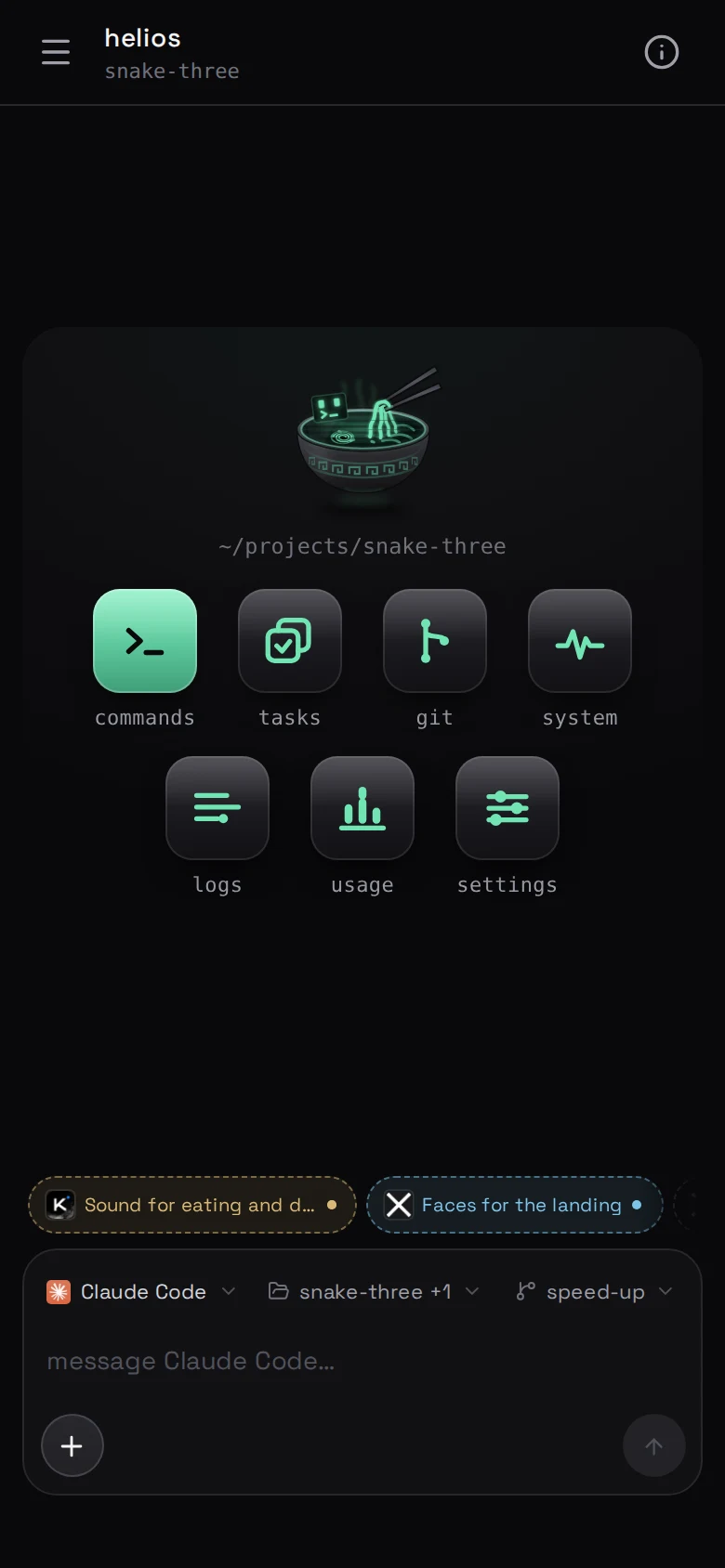
One machine, one folder, and a row of tiles. Everything you see is scoped to the folder in the header, and moving folder moves the lot.
Open a machine and this is where you land: the folder you are working in, the
chats in it, and a row of tiles.
A project is a folder
A project is a folder on your machine, usually a git repository. The header
names the one you are in. Tap it to move — browse the machine, pick a repository
it already knows, or point at a path.
Everything follows the folder: the chats you see, the commands on the
tiles, the variables that get delivered, the git screen, the roles a crew can
use.
You can have several going. Chats in different folders run at the same
time on the same machine — only what you are looking at is per-folder.
The header is one folder because a screen has to be about something. A chat is
not — it runs in one folder and can carry up to eight, which is how a job that
spans two checkouts gets done. See
more than one folder.
Getting your code onto the machine
However you normally would — git clone over ssh, or ask an agent to do it
("clone this repository into ~/projects"). If the repository is private, the
machine needs a credential of its own; git says what that is.
Deeper folders win
One rule runs through everything scoped to a folder —
variables, tool servers,
skills, roles: a setting on a folder
reaches everything under it, and a deeper folder's own setting beats it. What
that buys in a monorepo is worked through on variables.
The tiles
- commands — the lines this project is run by, as buttons. See
commands.
- git — every branch, the diff, the graph, and a chat that works them. See
git.
- system — what this machine is doing right now, and what the agents are
costing it. See is the machine all right?.
- logs — everything the machine said, and what took how long. See
logs and timings.
- usage — what the agents on this machine spent, by model. See
usage.
- SMM — the week's posts and the accounts they go out on.
- SEO — the pages you host and the bucket they live in. See
articles.
- plugins — tool servers, per project and per CLI. See
tool servers.
- settings — the agents, skills, variables and this panel's own
behaviour. See settings.
Two screens are not tiles: the trash and the
board of who is holding which files. Both are reached
from settings, at the moment the question comes up.
The chats
Under the tiles are the threads in this folder, most recent first. The ones that
are working are marked as working, and the ones that finished while you were
away are marked as unread.
Tap one to open it. Tap new to start another — as many as you like, on as
many agents as you like, at once. See a chat.
When an agent is the wrong tool, run a line yourself and watch it:
running a line yourself.
The sidebar
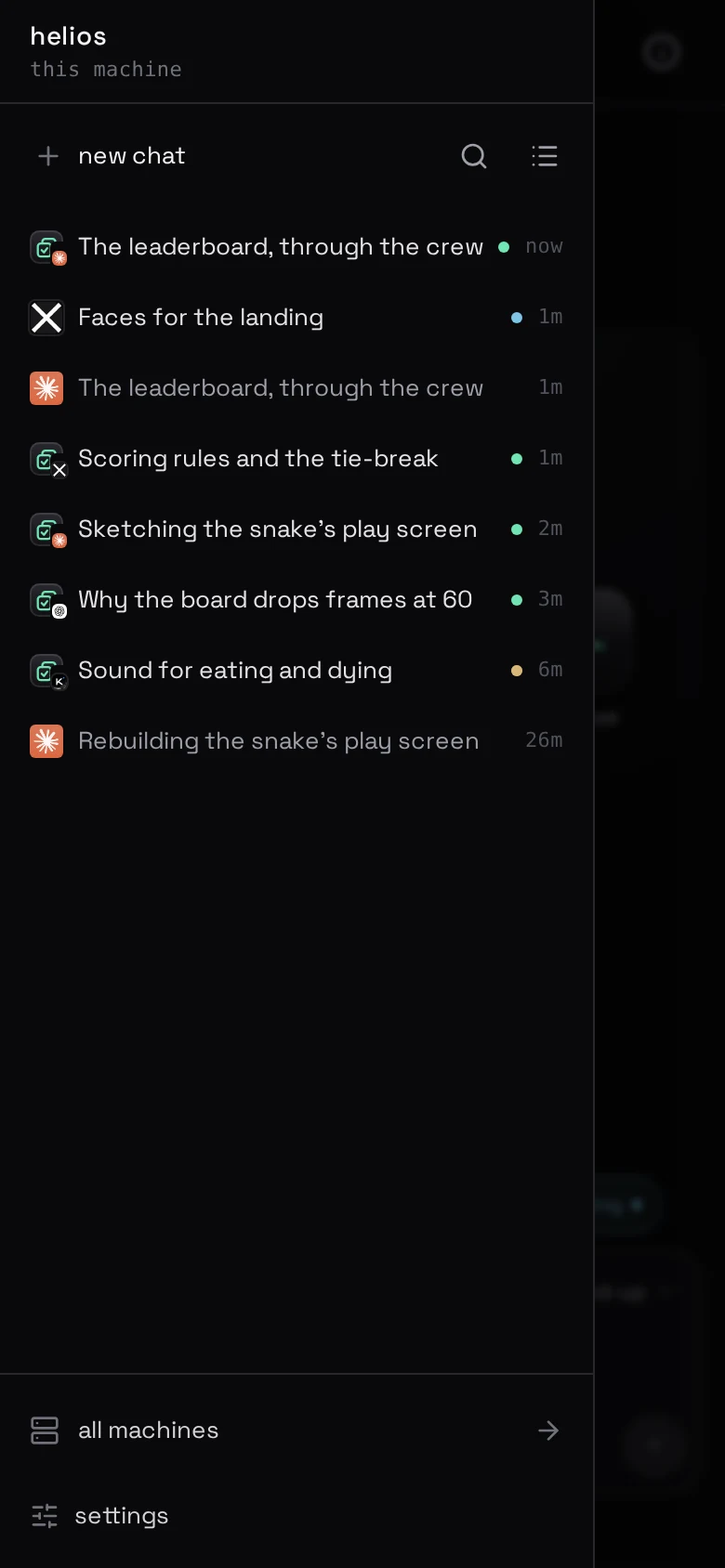
The rail on the left — a drawer on a phone — is every chat on this machine,
most recent first. It is how you get from one project to another without going
home first.
Group chats, next to search, cuts that list four ways:
- all — every chat on this machine, most recent first. This is how it
opens.
- merged — the folders you are in, as one list.
- by folder — a heading per directory.
- by project — the folders a project spans, under its name.
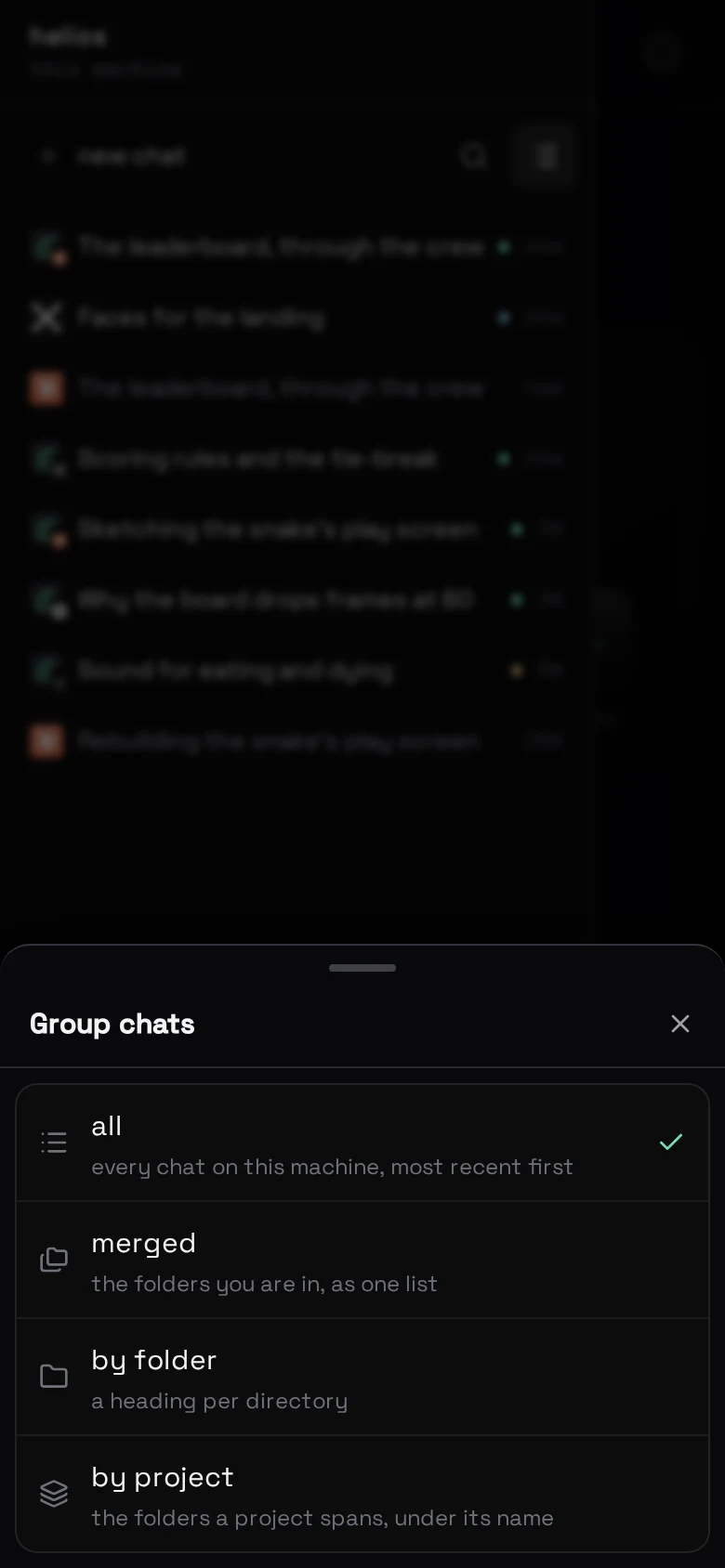
all hides nothing. The other three only regroup the folders already on
screen; a tap at the foot of the list reaches the rest of the machine.
Where beafk keeps its own things
~/.beafk on the machine — its database, its key, the variables it delivers.
Your project folders are yours. beafk writes into one only where you have asked
it to, and there are exactly two things it ever writes: an .env you turned on,
and the .gitignore line that keeps it out of the repository. The rules around
that are in variables.
Everything is one machine
This screen is one machine. Your other machines are on the fleet screen in the
cabinet, and each has a panel of its own. No screen mixes two machines'
chats — they are different computers, with different files.